







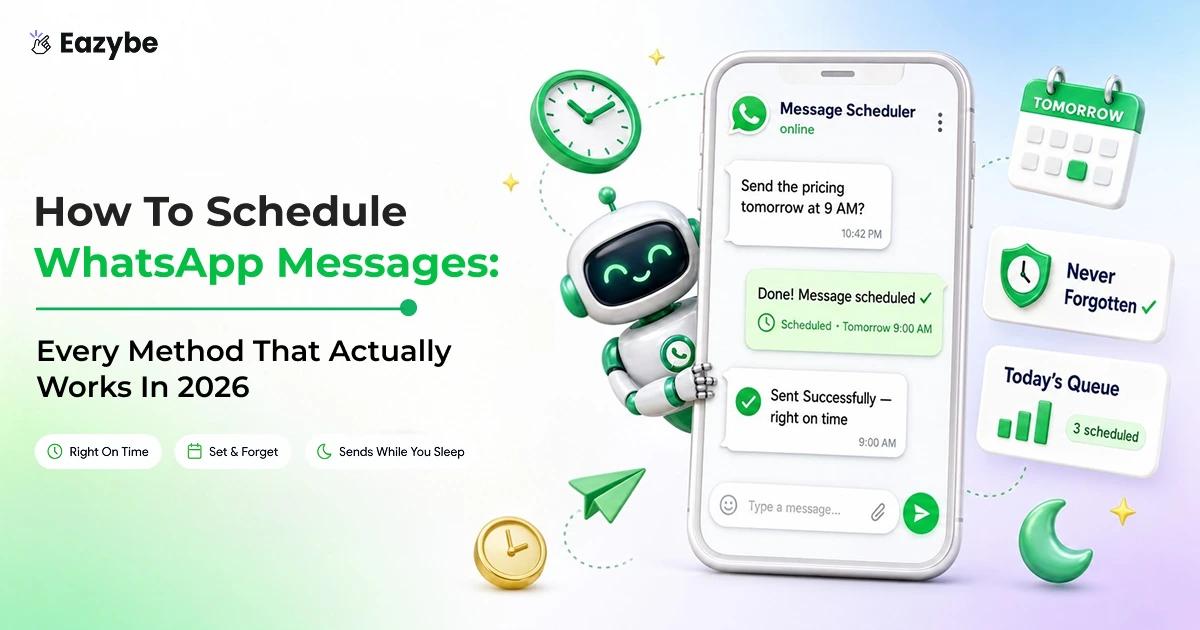


A scheduled WhatsApp message is one you write now and set to send at a date and time you choose, so it goes out at the right moment without you being there to press send. Think birthday wishes at midnight, or a client follow up first thing tomorrow.
The catch is that WhatsApp still has no scheduler you can use, so every method today is a workaround with a limitation attached. Eazybe WhatsApp AI agents fill that gap for teams, adding a proper scheduler to the WhatsApp your reps already use, with recurring sends, attachments and messages queued up to a year ahead. Here is every method that works on Android, iPhone, Web and for teams.
What Is A Scheduled Message?
A scheduled message is one you write in advance and set to send automatically at a date and time you pick, instead of sending it the moment you finish typing. It sits in a queue until that time arrives, and the person receiving it sees a normal message with no sign it was written earlier.
Worth knowing: scheduled and automated are not the same thing. A scheduled message goes out when you decide. An automated reply, like WhatsApp's Away Message, only fires after someone messages you first.
Also Read: How To Use WhatsApp Poll Results To Sell More And Grow Your Business
Does WhatsApp Have A Built In Scheduler?
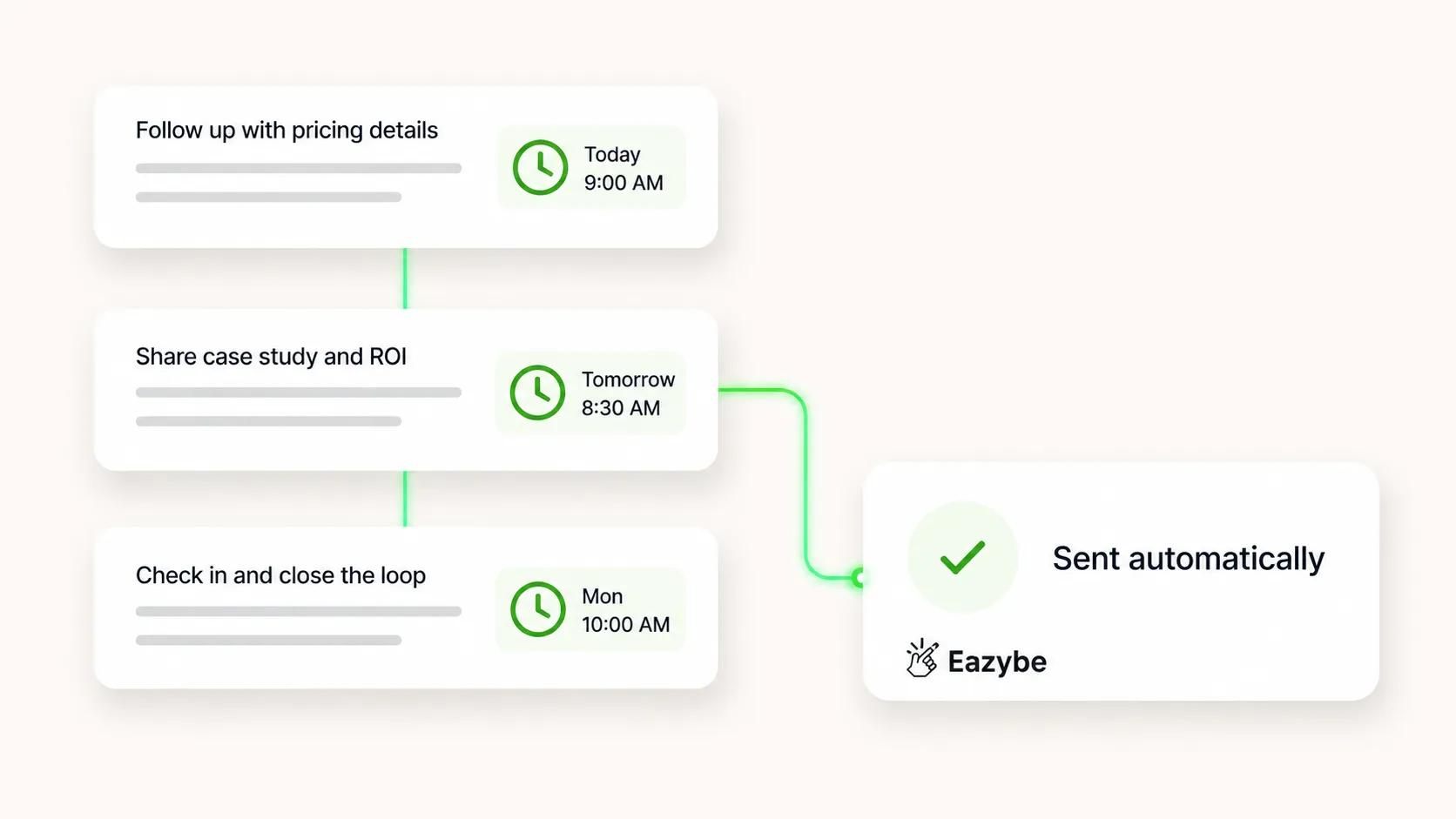
Queue a follow-up sequence once and it sends itself.
Not one you can use yet. WhatsApp is building native scheduled messages, and the feature turned up in the iOS beta version 26.7.10.72 back in February 2026, but it has not reached general release on any platform. If you have read somewhere that it launched in late 2025, that is wrong, and a few sites are repeating it.
So, until it ships, every method below relies on a WhatsApp message scheduler of some kind rather than on WhatsApp itself.
What WhatsApp's native scheduled messages will do
Here is what the beta code shows you can expect:
- You write your message, pick a date and time, and WhatsApp sends it for you.
- Anything scheduled sits in a queue with its own section inside the chat info screen.
- You can review, edit or delete a pending message before it goes.
- Cancelling is silent, so the person on the other end never knows a message was queued.
- It works in one to one chats and in groups.
What it still will not do
This is the part to think about if you run a business on WhatsApp. Native scheduling handles one message, in one chat, at one time. You get no recurring WhatsApp messages, no bulk sending, no way for anyone else on your team to see what is queued, and no record of it anywhere afterwards.
For a birthday message that is plenty. For the client follow ups your revenue depends on, you will still want a proper WhatsApp message scheduler behind you.
Suggested Read: Top 10 WhatsApp Business Description Sample For Your Business Profile
How To Schedule WhatsApp Messages On Android
Android gives you nothing built in, so you will need a WhatsApp scheduler app. SKEDit is the one most people land on:
- Install SKEDit from the Google Play Store and create an account.
- Grant Accessibility permissions under Settings, then Accessibility, then SKEDit.
- Tap the plus icon and choose WhatsAppB.
- Pick your contact, write your message, and set the date and time.
- Turn off battery optimisation for SKEDit so Android does not shut it down in the background.
Know this before you rely on it: Apps like this work by automating screen taps rather than going through WhatsApp officially, so they break whenever WhatsApp updates its interface. Your phone has to be on, unlocked and connected at the moment your message is due. And Accessibility permission hands over deep access to your device, so think carefully about which app you give it to.
It is fine when you just want to send a WhatsApp message later to a friend. It is not something to build a business process on.
How To Schedule WhatsApp Messages On iPhone
You do not need a WhatsApp scheduler app on iPhone, because Apple's own Shortcuts app handles it and is safer than anything third party:
- Open Shortcuts and go to the Automation tab.
- Create a new personal automation and choose Time of Day.
- Set your date and time.
- Add the action Send Message, then choose WhatsApp as the app.
- Pick your contact and type your message.
- Turn off Ask Before Running so it sends without you tapping anything.
The catch: iOS will not let any app send messages fully in the background, so unless you switch off that confirmation step you get a notification you still have to tap. Your phone also needs to be unlocked and online when the automation fires. It works as a way to auto send a WhatsApp message, but it is fussy, and it only ever handles one message at a time.
Also Read: WhatsApp Bulk Message Sender: How To Send WhatsApp Messages To Hundreds Without Getting Banned
How To Schedule A WhatsApp Message On Web
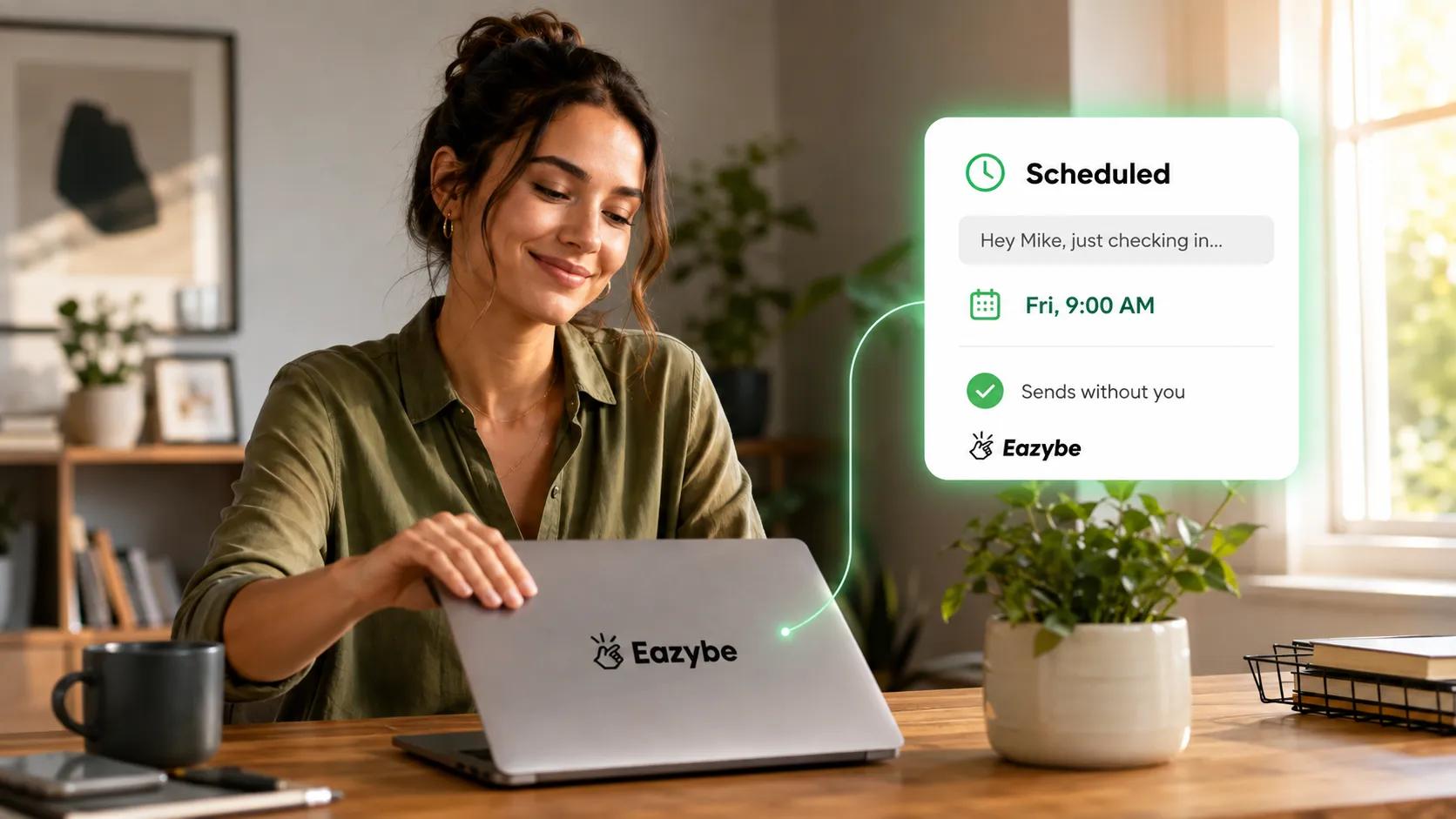
Schedule it on WhatsApp Web and it sends without you.
If you work from a laptop, scheduling on WhatsApp Web is the smoothest route open to you today. Chrome extensions put a small calendar or clock icon next to the message box inside WhatsApp Web, so you schedule from right there without leaving the chat:
- Install a message scheduling tool from the Chrome Web Store.
- Open web.whatsapp.com and log in as usual.
- Open your chat, type the message, and click the clock icon beside the send button.
- Choose your date and time, and attach a file if you need one.
- Check the queue afterwards to confirm it saved.
Scheduling on WhatsApp Web with Eazybe
Most extensions send through your open browser session, so the tab has to stay open at the scheduled moment. Close your laptop and nothing goes out.
Eazybe does not work that way. Your message is queued properly and goes out at the time you set, whether your laptop is open, closed or switched off entirely.
Which is the difference between a scheduler you can rely on and one you have to remember to leave running. You can also queue up to a year ahead, attach files, and set a message to repeat rather than rebuilding it every week.
How To Schedule A Message On WhatsApp Business
A lot of people search for a WhatsApp Business schedule message option and come away disappointed, so here is the straight answer: the WhatsApp Business App has no message scheduler.
What you get instead is automated replies, which is a different thing:
- Away Message: sent automatically when someone messages you outside your working hours.
- Greeting Message: sent automatically the first time someone contacts you.
Both sit under Settings, then Business Tools. They only react to an incoming message, so you cannot use them to reach out to someone at a time you choose, which is what you were probably after.
If you want real scheduling alongside the Business App, the route is to add the API on the same number through WhatsApp coexistence, so your team carries on replying in the app while your scheduled and automated messages run separately.
How To Schedule WhatsApp Messages For A Team With Eazybe
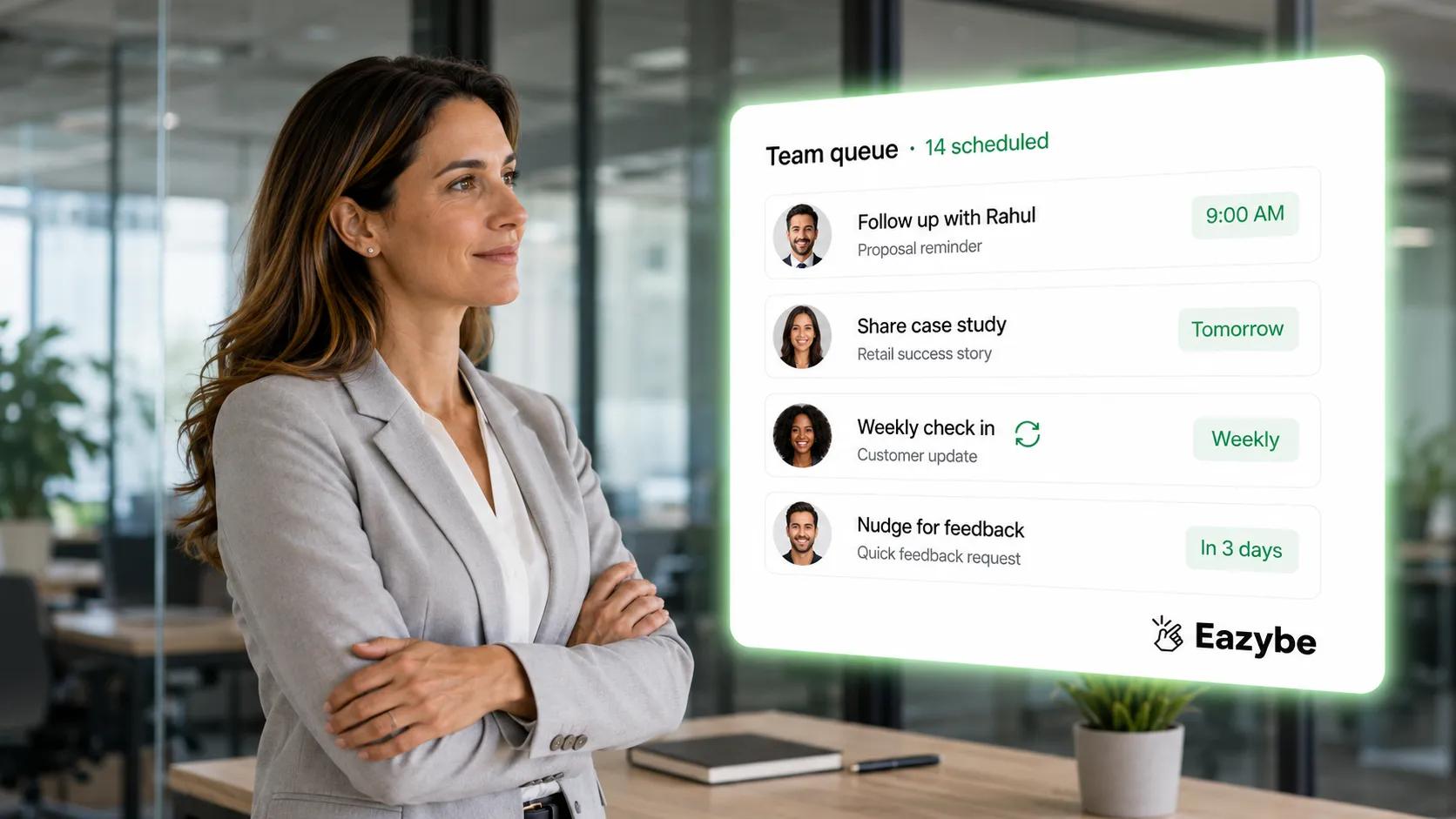
Managers see every scheduled message across the whole team.
Everything above falls apart the moment more than one person is involved and usually for the same three reasons. A rep schedules a follow up on their own phone and nobody else knows it exists. Someone leaves and their queued messages leave with them. A laptop stays shut and the message never goes.
Scheduling as a team needs things the personal methods simply do not have:
- Sends that do not depend on one device, so your message goes out whether or not a particular laptop is open.
- Recurring WhatsApp messages, for weekly check ins, renewal reminders and anything else that repeats.
- Visibility, so a manager can see what is queued across the whole team instead of hoping it happened.
- A record, so every scheduled message lands on the right contact in your CRM rather than disappearing into a chat.
Eazybe does all of this from inside WhatsApp Web, so your reps keep working exactly where they already are. Alongside the scheduling itself, the AI reads response patterns and suggests when each contact is most likely to reply, which beats guessing at a send time and is something no other scheduler on this list offers.
Around it sits the rest of the workflow: a shared team inbox so every conversation has an owner, quick replies so nobody retypes the same message twice, and CRM WhatsApp chat sync so your messages land against the right contact on their own. None of it needs a new number or a migration, because it runs on the WhatsApp your team already uses.
How To Bulk Schedule WhatsApp Messages Through The API
If you want to bulk schedule WhatsApp messages to thousands of contacts rather than dozens, you need the WhatsApp Business API. Your WhatsApp broadcasts Message go out as pre approved templates, which you submit to Meta and wait on, and you can queue campaigns for whatever time suits your audience.
Budget for two things. Templates take approval time, so you cannot write and send within the hour. And Meta charges you per message delivered, WhatsApp business api pricing, with the rate depending on the category and the country your customer is in.
One warning worth taking seriously. Those free bulk senders promising unlimited scheduled messages are the fastest way to lose your number, because they push volume through unofficial channels that WhatsApp actively watches for. Check will WhatsApp ban my number for marketing what actually gets a number banned before you try one.
Which WhatsApp Message Scheduler Should You Use?
Every method here schedules a message, but they fail in different ways, and the differences only show up once you depend on one. Here are all of them side by side so you can match the method to how you actually work.
| Method | Platform | Needs your device on | Recurring | Bulk | Team can see it | Cost |
|---|---|---|---|---|---|---|
| Native scheduled messages | All, once released | No | No | No | No | Free |
| SKEDit and similar apps | Android | Yes | Yes | No | No | Free tier |
| Apple Shortcuts | iPhone | Yes | Yes | No | No | Free |
| Browser extension | WhatsApp Web | Usually yes | Varies | No | No | Free tier |
| Eazybe Scheduler | WhatsApp Web | No | Yes | No | Yes | Free tier |
| WhatsApp Business API | API | No | Yes | Yes | Yes | Per message |
The short version: for personal messages any of the free routes will do, a sales team needs something with visibility and a record behind it, and campaigns to thousands of people need the API whichever tool you pick.
Rules For Scheduling Messages Without Getting Reported
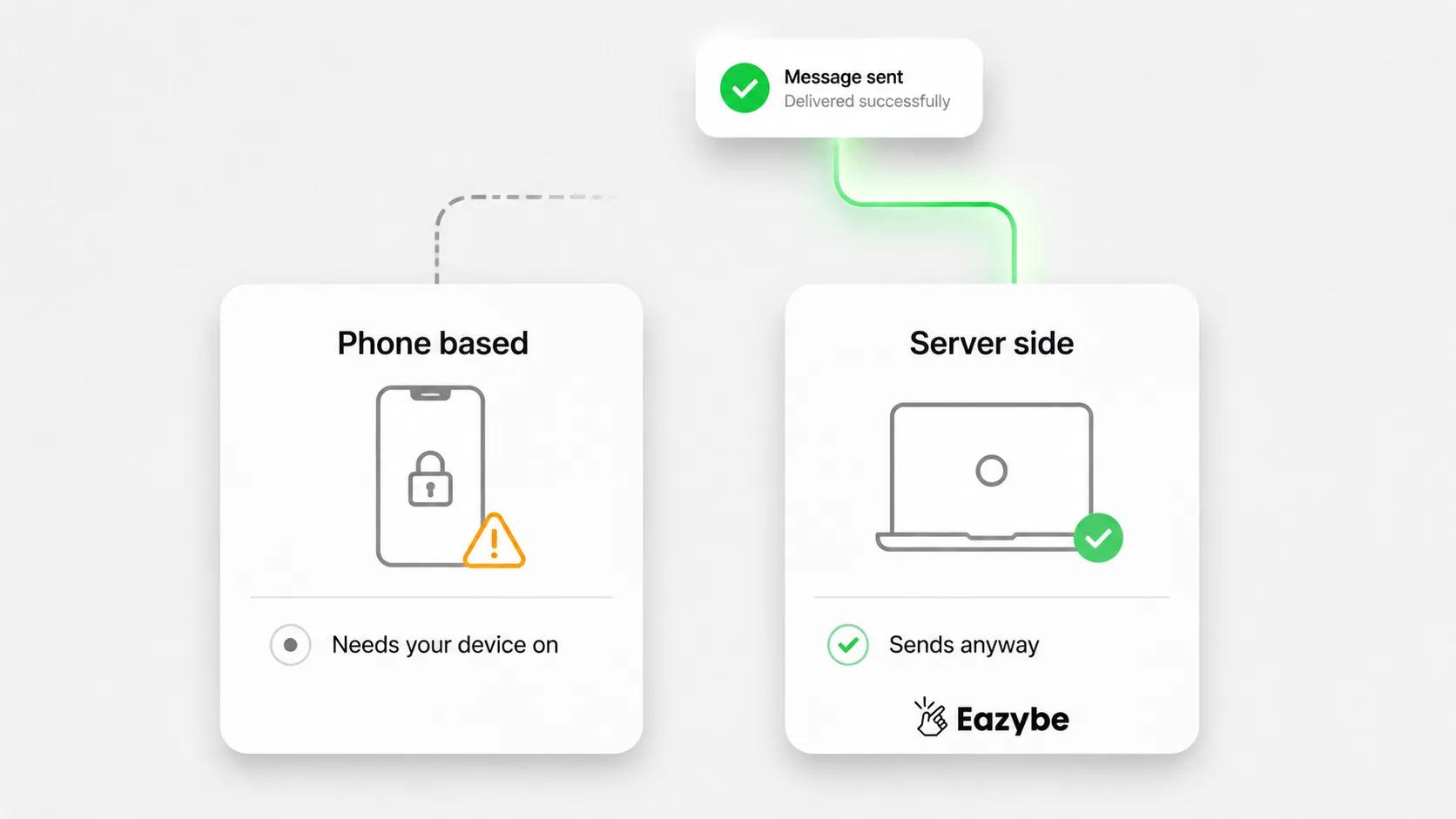
Phone-based scheduling needs your device on; server-side sends regardless.
Scheduling itself is completely allowed. What gets people into trouble is what they schedule.
- Stick to reasonable hours, because a message landing at 2am gets muted or reported more often than it gets read.
- Personalise anything going to more than a handful of people, since identical text sent to a list is exactly what spam filters and recipients both look for.
- Get consent before you schedule anything promotional, which is a WhatsApp policy requirement rather than a suggestion.
- Keep your volume sensible on a personal or Business App number and move to the API properly if you genuinely need scale.
Do those four and scheduling becomes one of the safest things you can do on WhatsApp.
Final Verdict: How To Schedule Messages On WhatsApp
If you are sending a handful of personal messages, pick whichever free method suits your device and you are done. Shortcuts on iPhone, a scheduler app on Android, an extension on the Web. They all do the job when nothing much rides on it.
It changes once the follow ups you are scheduling are the ones your revenue depends on. At that point you need sends that do not hang on one unlocked phone or one open laptop, recurring messages you set once and a record left behind.
So, a manager can see what is queued and what already went. That is the line between a workaround and something you can actually run a team on, and it is worth crossing before you miss the message that matters.